

How to Connect Your Website Form to Your CRM (and Stop Missing Leads)
If inquiries from your website land in an inbox and wait for you to copy them into a spreadsheet or CRM, some will slip through. Not because you do not care, but because busy weeks happen. The fix is simple and affordable: connect your website form to your CRM so every lead is captured the moment it arrives. This guide shows how to connect website form to CRM tools so no inquiry slips through the cracks.
What changes when your form and CRM are connected
- Every submission becomes a contact record automatically.
- The person receives an instant confirmation with clear next steps.
- A follow-up task is created so nothing waits on memory.
- You can see where each lead came from and what happened next.
Three ways to make the connection
- Native integration. Many form plugins and CRMs connect directly. Check your form tool’s integrations list first because it is often the simplest option.
- Automation platforms. Tools like Zapier or Make sit between your form and CRM, passing data across whenever a form is submitted.
- Webhooks. For more control, a form can send data straight to a CRM endpoint. This usually needs a little technical setup.
A simple workflow to start with
- Visitor submits your contact or booking form.
- A new contact is created in your CRM with name, email, phone, service interest and source.
- An automatic email thanks them and explains when they will hear from you.
- A task is assigned to follow up within one business day.
- If no reply after three days, a gentle reminder email is sent.
Before you automate
- Keep form fields short. Ask only for what you need to respond well.
- Match form fields to CRM fields so data lands in the right place.
- Test with a dummy submission before going live.
- Add a consent checkbox if you plan to send marketing emails.
Why leads go missing without a connection
When a website form only sends an email, every lead depends on someone noticing that email and copying it somewhere useful. On a busy day, messages get buried, forwarded to the wrong person or never answered. The lead does not complain. They simply call the next business on their list.
Connecting your website form to your CRM removes that weak link. Each submission becomes a contact record with the details the person entered, a source and a status. You can see at a glance which leads are new, which have been contacted and which are waiting on a quote.
Choose your connection method
There are three common ways to connect website form to CRM systems. The right one depends on your form plugin, your CRM and how much flexibility you need.
- Native integration. Many form tools, such as Fluent Forms, Gravity Forms and WPForms, offer add-ons for popular CRMs like HubSpot, EspoCRM or Zoho. This is usually the simplest and most reliable option.
- Automation platform. Tools such as Zapier or Make sit between your form and CRM. They work with almost any combination and can add extra steps, such as a Slack alert or a welcome email.
- Webhook or API. If your CRM accepts webhooks, your form can send data directly. This is the most flexible approach but usually needs technical help to set up and maintain.
Start with a native integration if one exists. Move to an automation platform when you need steps the integration cannot handle.
Map your form fields carefully
Field mapping tells the CRM where each piece of information belongs. Getting this right is what makes the data useful later.
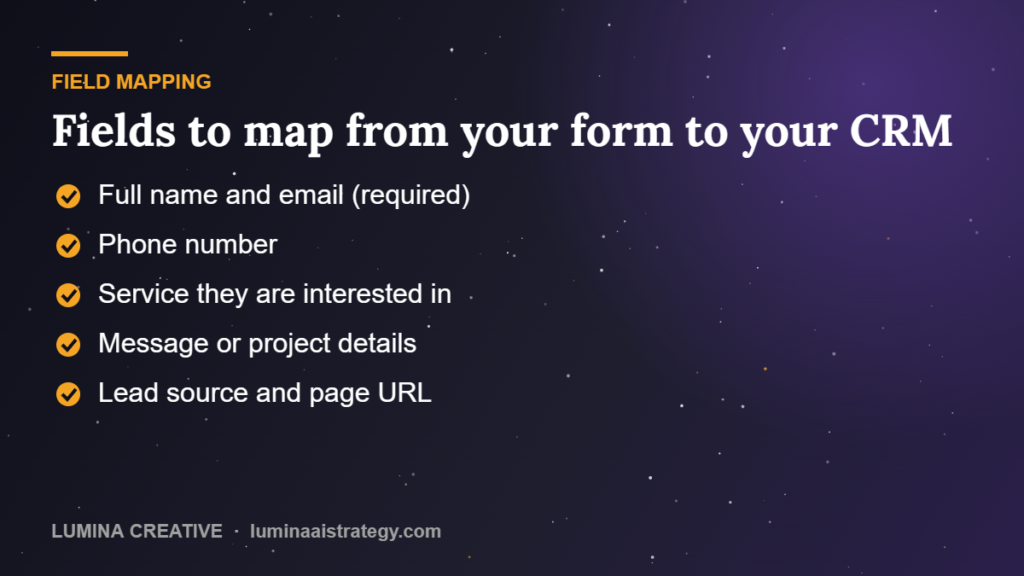
- Required fields: name and email, so every record can be contacted.
- Phone number, formatted consistently.
- Service of interest, using a dropdown on the form so the values match your CRM options exactly.
- Message or project details, saved to a notes or description field.
- Lead source and page, so you know which page or campaign produced the lead.
Keep your form short. Every extra field lowers the number of people who finish it. Ask only for what you need to respond well.
Set up instant alerts and a reply
A CRM record is only valuable if someone acts on it. Add two automatic steps:
- Alert the owner. Send an email, text or chat notification to the person responsible for new leads, with the key details and a link to the record.
- Reply to the lead. Send an immediate confirmation that thanks them, says when they will hear back and, if you can, includes a booking link.
Fast responses matter. The business that replies first often wins the work.
Test before you rely on it
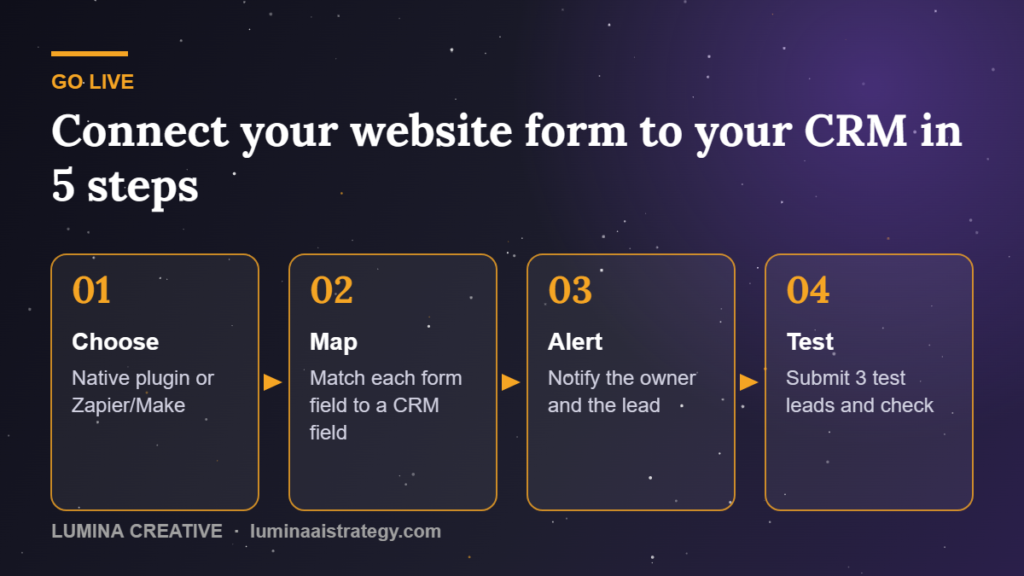
Submit at least three test leads using different combinations of fields. Check that each one arrives in the CRM, lands in the correct fields, triggers the alert and sends the confirmation email. Test again after any change to your form, CRM or plugins. A broken connection is worse than none, because you will assume leads are being captured when they are not.
Keep your website form and CRM data clean
- Prevent duplicates by matching on email address before creating a new contact.
- Use consistent values for services and sources so reports are accurate.
- Protect against spam with a honeypot field or a privacy-friendly CAPTCHA, so junk submissions do not fill your CRM.
- Respect privacy. Add a short consent line to the form and store only the information you need.
Measure the results
After a month, look at three numbers in your CRM: how many leads arrived, how quickly each was contacted and how many became paying clients. Those figures show whether the connection is working and where your follow-up can improve. Most businesses that connect website form to CRM tools discover leads they had been missing for months.
Real examples of lead workflows
Here is how a connected lead workflow looks in a few different kinds of small businesses.
- A consultant receives an inquiry from the contact page. The record is created automatically, the consultant gets a text alert, and the prospect receives an email with a link to book a discovery call. When the call is booked, the status updates on its own.
- A home services company adds a “type of job” dropdown and a ZIP code field. New requests are routed to the right technician based on the service and area, and anything outside the service area receives a polite reply automatically.
- A coaching practice tags each new contact by the free download they requested. A short email sequence follows, and when someone books a session, they move into a separate client pipeline.
In each case, the owner stops copying details from emails and starts working from a single, accurate list.
Questions to answer before you build
A little planning prevents most problems later. Answer these with your team before you set anything up:
- Who is responsible for responding to new inquiries, and who covers when they are away?
- How quickly should every lead receive a personal reply, not just the automatic confirmation?
- Which stages does a lead move through, from new inquiry to paying client?
- What information do you truly need on the first form, and what can you ask later?
- Which reports will you check each week, and who will look at them?
Write the answers down. They become the rules your automation follows.
When to ask for help
Most owners can set up a basic connection in an afternoon using a native plugin. Consider bringing in help when you have several forms feeding different pipelines, when you need custom routing or scoring, or when leads must also flow into accounting, scheduling or email marketing tools. A well-built setup should come with clear documentation, so you understand how it works and can make small changes yourself.
Common setup problems and quick fixes
- Leads appear without names or phone numbers. A field mapping is missing. Check each field in the integration settings.
- Every submission creates a duplicate. Turn on duplicate checking by email address.
- Alerts stopped arriving. Check whether the notification email is landing in spam, or whether a plugin update changed the settings.
- Spam is filling the pipeline. Add a hidden honeypot field and review your spam protection settings.
- The automation fails silently. Turn on error notifications in your automation platform so you hear about failures right away.
Schedule a quick test every month. Two minutes of checking protects the most valuable part of your marketing: the people who already raised their hand.
Key takeaways
- Manual copying is where leads get lost.
- Native integrations, automation platforms and webhooks can all do the job.
- Pair every captured lead with an instant reply and a follow-up task.
Want this built for you? LuminaFlow™ connects your website, CRM and calendar into one reliable Lumina Stream. Start with a Clarity Call.